Friday, June 17, 2011

The Device Manager

  • Overview: The Device manager lists all devices that are detected by Windows - Both working and non-working. It is a great place to update device drivers or solve device related problems.
  • How to launch: There are many ways to launch it. Two of which are:
    • Type "devmgmt.msc" in the "run" dialog.
    • Right click "My computer"->Properties:
      • Windows XP: "Hardware" tab->Device manager.
      • Windows 7: "Advanced system settings"->"Hardware" tab->Device manager.
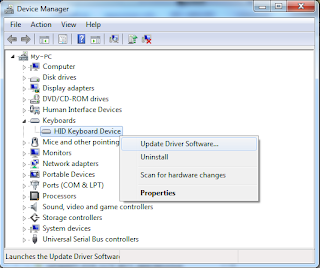
  • A few things that you must know:
    • Devices with problems: If a device has problems, a BANG ("!") will be displayed alongside it's name. You may want to update/install/re-install the driver for that device.
    • Disabling/enabling a device: Right click on the device and choose "Disable"/ "Enable".
    • Installing/updating a device driver: Right click on the device, choose "Update driver..." and follow the instructions.
    • Removing a device driver: A device driver can be removed by choosing "Uninstall" from the context menu. The device will disappear but will re-appear after you refresh the list(Scan for hardware changes) or restart the system.
    • Scanning for devices: Click the icon with a lens on it or go to "Action"->"Scan for hardware changes".
    • Finding the Device ID: Under the context menu go to "Properties" ->"Details" tab. Select "Hardware id(s)" from the drop down list. This will display the device ID(s). You can use the ID(s) to search the internet for the device driver if you have no clue about the device.
        Check out the properties dialog ("Properties" under the context menu). It has a whole lot more to offer.
    It is a good practice to check the Device manager after installing Windows. Devices with "!"s require your immediate attention.

    Friday, June 3, 2011

    Thunderbird - An Amazing email client

    • A few things that I like about TB:
      • Effective inbuilt spam manager.
      • Messages can be managed as they arrive.
      • Customizable folder options.
      • Cross platform (If you are dual-booting Windows and Linux your emails will look the same).
      • Fast searching.
      • Extensions to ease tasks.
    •  Change the path of the storage folder:
      • Why change?:
        • Might be easier during reinstalling the OS.
        • Your emails will look the same while dual booting.
        • You know exactly where your emails are stored. :-)
      •  How to:
        1. Go to Tools->Account settings.
        2. Navigate to Local folders.
        3. Change the local directory..
             Note: This is the location where your emails are stored.

    • Recommendation: Don't use the OS partition as the storage folder. Use another partition instead. You don't have to worry about losing your emails when/if you reinstall the OS.
    • Where are profiles stored?:
      1. Navigate to "Server Settings" under the current account.
      2. The profile storage path can be found under the "Local directory" section.
    Note: Outlook express also lets you change the storage folder (Tools->Options->Maintenance tab->"Store folder" button).

    Wednesday, June 1, 2011

    My favourite Firefox Add-ons

    Everybody has their own set of favorite Add-ons. Here are mine:
    • DownThemAll!:
      • Advantages: 
        • Way faster than the conventional download method.
        • Allows pausing and resuming downloads.
        • Works with Video DownloadHelper.
        • Easy to use.
      • What it does: Simultaneously makes 4 parallel connections to the download site quadrupling download speeds.
    • Video DownloadHelper:
      • Advantages:
        • If you can watch a video, you can download it.
        • You don't have to watch the entire video in order to download. Just start the video and the download link will be available - Good if you have a slow connection.
        • You can close the video window after download begins.
        • Have a slow connection? Frustrated with video lag? - Download the video and watch it later.
    • Flashblock:
      • Advantages:
        • Blocks flash applications - They annoy me a lot.
        • Helps if you have a slow connection.
    I use DownloadHelper to download videos. DownThemAll works like a charm with it - now I can download videos in no time.

    Feel free to share your own likes and experiences :-)